

Validation
Protect reviewed entries from client edits.
A client change to an entry you have already checked means finding the change and checking the figures again. In SoloDesk, validating an accounting entry protects it from client edits. A stamp shows who validated it and when. Your client can continue working on the rest of their books.
The stamp
Your review, recorded in the books.
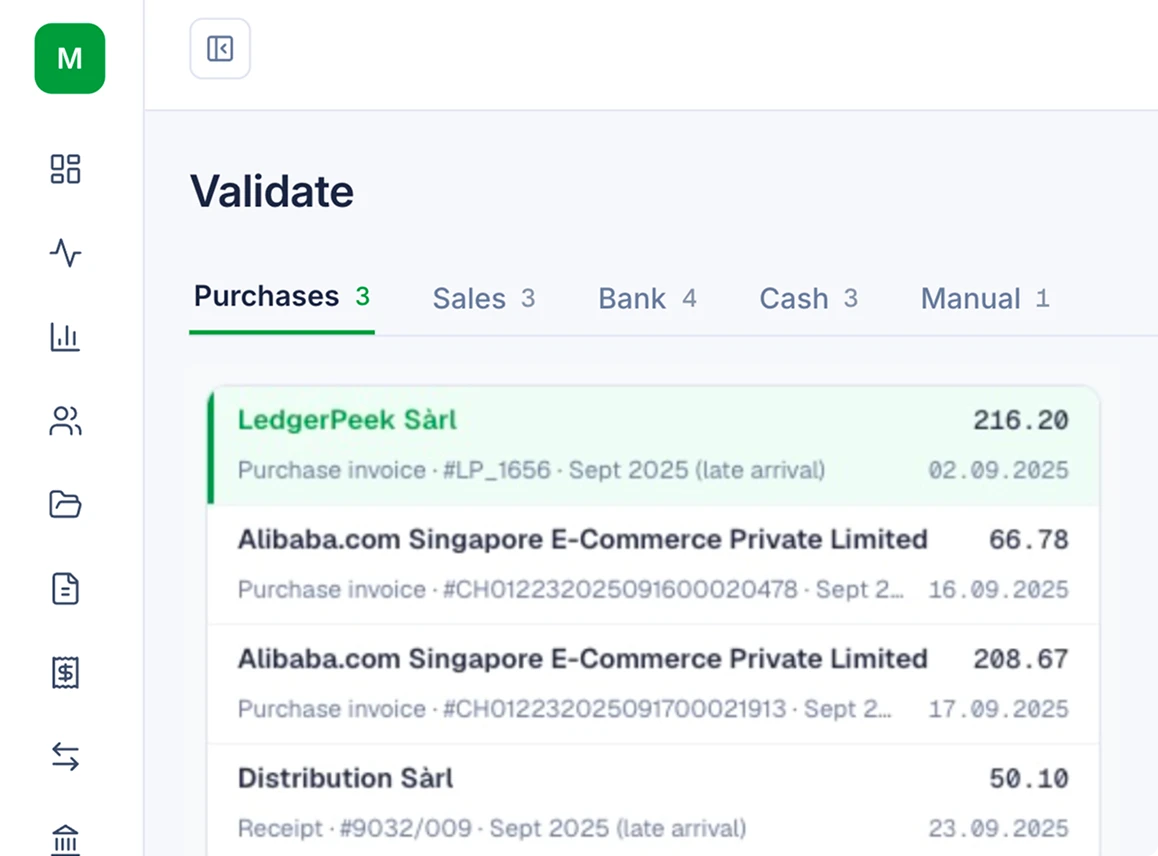
SoloDesk reads incoming documents and creates accounting entries automatically. You check each entry alongside the invoice, receipt or transaction it relates to, then validate it. The stamp records who validated the entry and when. Your team can see what has been reviewed, whether you handle all the bookkeeping or share it with the client.
Tool for shared books
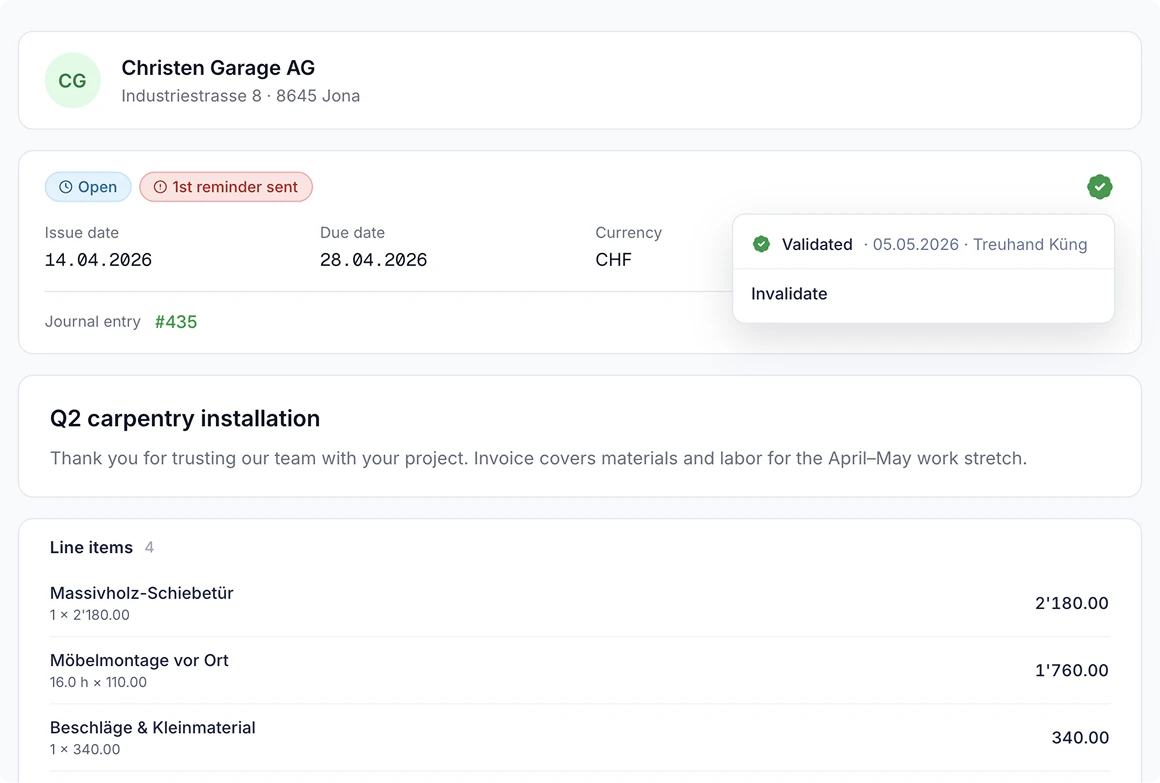
When clients also do their bookkeeping in SoloDesk, validation protects the entries you have reviewed from their edits while your engagement is active.
-
The accounting entry stays protected.
The client cannot change its amounts, accounting lines or entry date, or delete it.
-
Presentation edits can continue.
Correcting an invoice title leaves its accounting entry and validation unchanged. The client's access and the document's usual editing rules still apply.
-
Clients can still record payments.
The client can record a payment against the invoice. That payment creates a separate accounting entry for your review; the invoice entry keeps its validation.
Corrections
Corrections stay with your practice.
While your engagement is active, your practice handles changes to validated accounting entries.
Correct the entry and update the stamp.
When an accountant on your team corrects a validated entry, its stamp updates automatically with that accountant's name and the time of the change.
Keep client questions connected to the entry.
Clients using SoloDesk can see who validated an entry and when. If they spot something to correct, they can raise it in the conversation with a reference to that entry.
Return an entry for client editing when needed.
You can remove its validation so the client can make the correction, if their working arrangement permits accounting edits. You then review and validate the corrected entry.
Both sides
You and your client can see what has been reviewed.
-
Your team can recognise reviewed entries.
The validation stamp records the review on the accounting entry itself. When you or a colleague opens it, you can see who validated it and when.
-
Your clients can see your professional involvement.
Clients using SoloDesk see the stamp on the entry or related document. It shows where your team has reviewed the accounting, including entries created automatically from incoming documents.
-
Your practice is named on the work.
The stamp identifies your practice as well as the accountant who validated the entry. If a question arises about the entry, both sides can identify the accountant and practice behind its recorded review.
Monthly view
Pick up the review without relying on memory.
-
See what is waiting in each month.
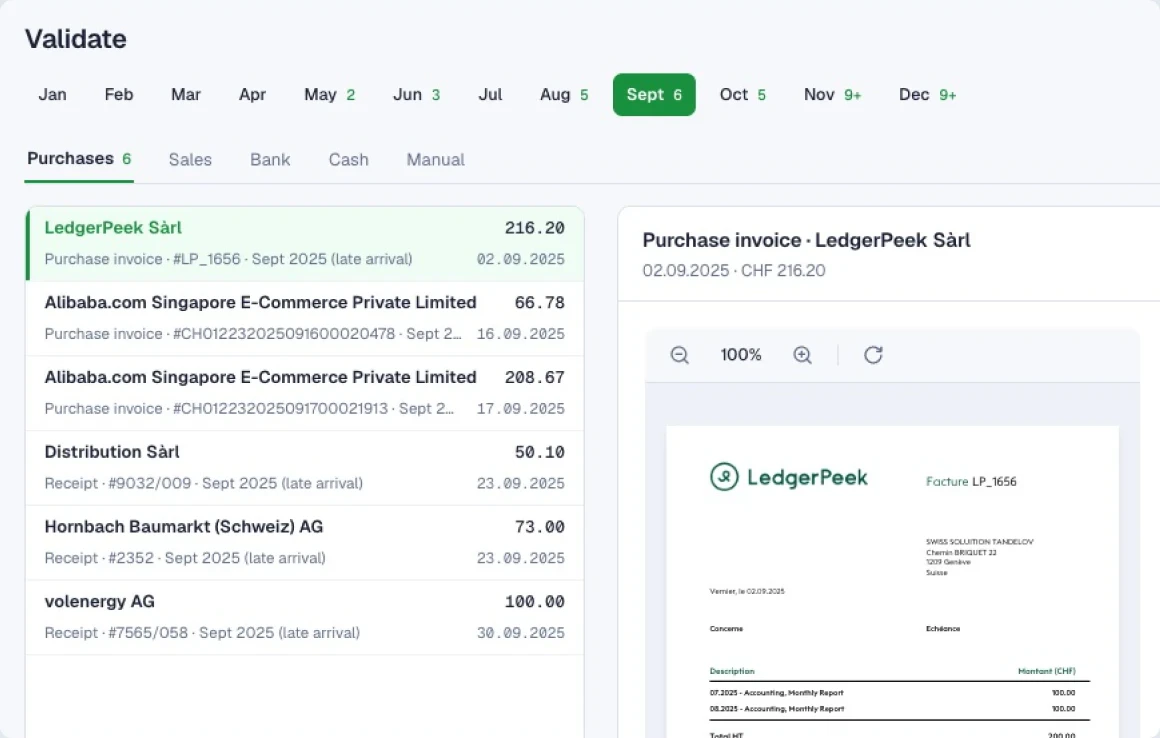
Each month shows the number of accounting entries awaiting validation. Open its queue to pick up where you left off, without sorting through work you have already completed.
-
Notice new work in an earlier month.
Even after you clear a month's queue, late entries remain easy to spot. A July entry booked in August updates July's count and appears in its queue with a late arrival marker.
-
Keep your review scope clear.
Entries awaiting validation from before your agreed start date for handling the client's accounts sit in a separate Backlog. They remain available to review, while the monthly counts focus on the period your practice is responsible for.
Review in practice
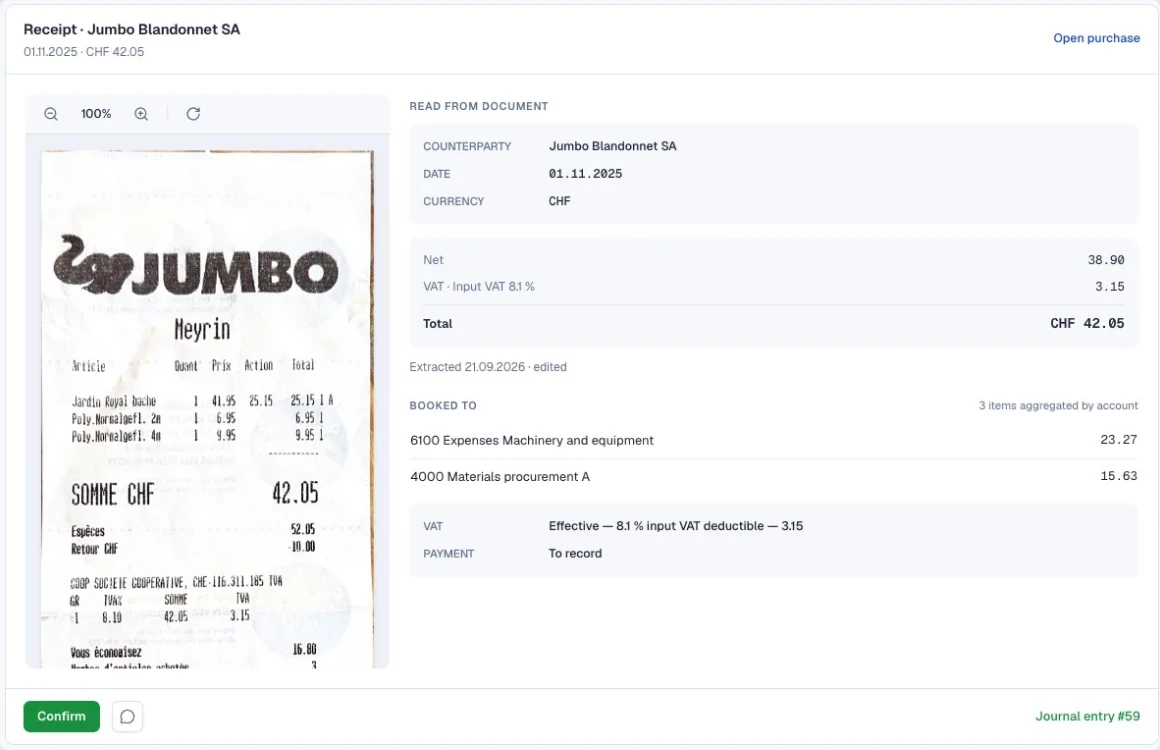
The entry and its evidence, ready to review.
-
Compare the entry with its source.
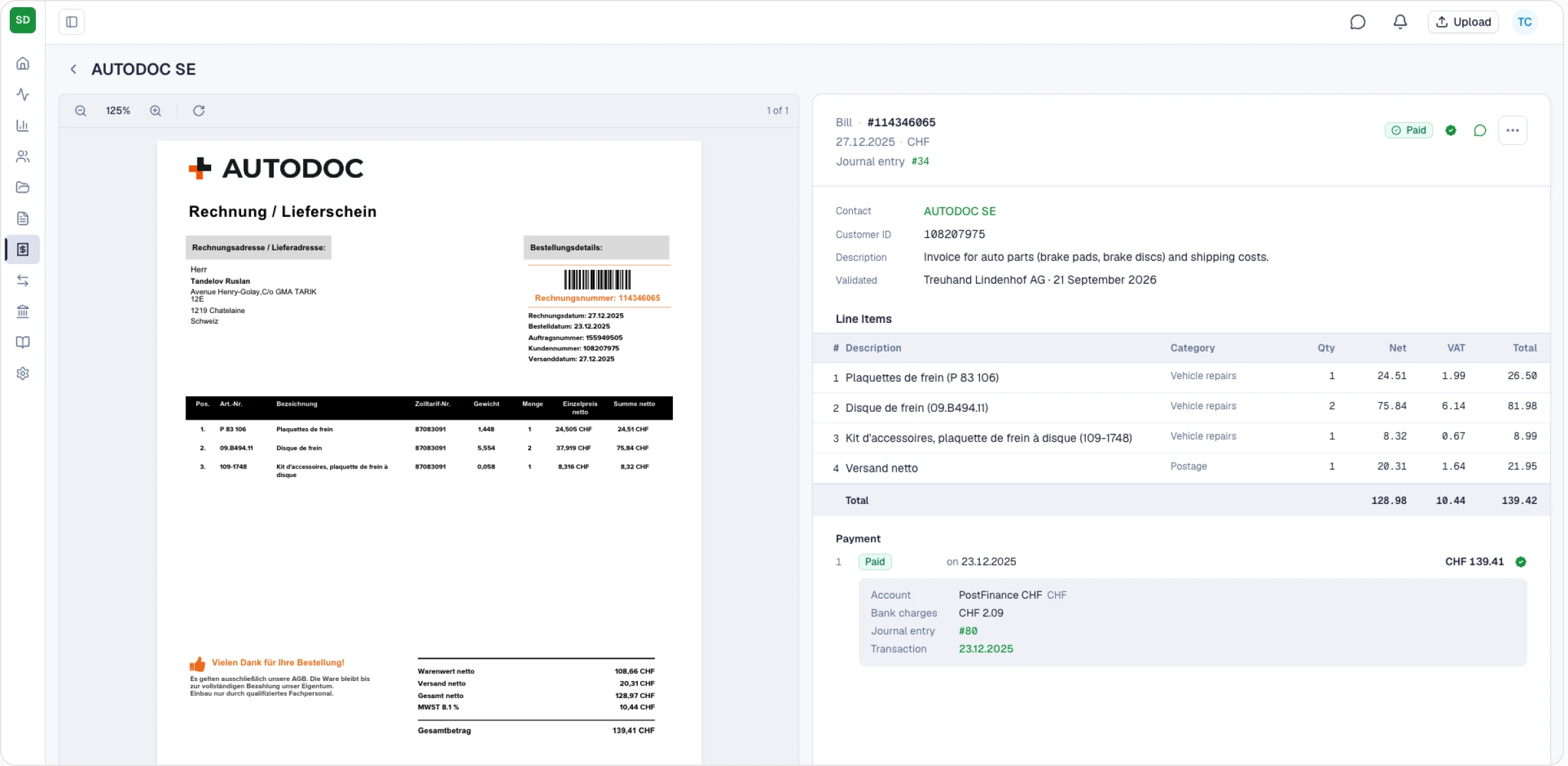
For a supplier invoice, see the source document alongside the accounting lines. For a bank or payment entry, the review panel shows the related transaction or payment details. You can check the entry against the information behind it while keeping the queue in view.
-
Validate and continue in the same screen.
When the entry is ready, press Enter to validate it and bring up the next one. Review and validate entries one at a time, moving straight to the next without leaving the screen.
-
Open the full record when you need it.
For a closer look, open the related invoice or transaction in a new tab. The review queue stays open, so you can return to it after checking the details.
Working arrangements
Validation fits the way you work with each client.
When clients share the bookkeeping.
Review entries booked by the client or created automatically, then validate them. The stamp records your review and protects those accounting entries from client edits while your engagement is active.
When clients send documents and follow the figures.
Clients can upload documents, answer your questions and see your validation stamps. Accounting edits stay with your practice, while the stamp shows clients which entries your team has reviewed.
When your team handles all the bookkeeping.
Validation gives your team a record of the entries it has reviewed, including those booked automatically. Clients can continue sending documents outside SoloDesk without using the software themselves.
See the engagement modes