

The Portfolio
See what needs attention.
The Portfolio is your practice's workspace in SoloDesk. See documents to process, payments to reconcile and entries to review across your clients, with updates and conversations alongside the work.
Some clients send documents regularly. Others need a follow-up before anything arrives. Use your practice's last recorded activity on each client to decide whom to check in on, before months of paperwork build up.
Last March
A year's paperwork arrives when you are busiest.
- January
Annual payroll reports need preparing and submitting for every client with employees, before the month is over.
- February
Q4 VAT returns are due at the end of the month. The books need to be up to date through 31 December, with the annual closing still to follow.
- March
For clients with a 31 March tax deadline, the annual accounts must be closed, checked with the client and used to prepare and submit the corporate tax return.
Your practice
Build shared knowledge around each client.
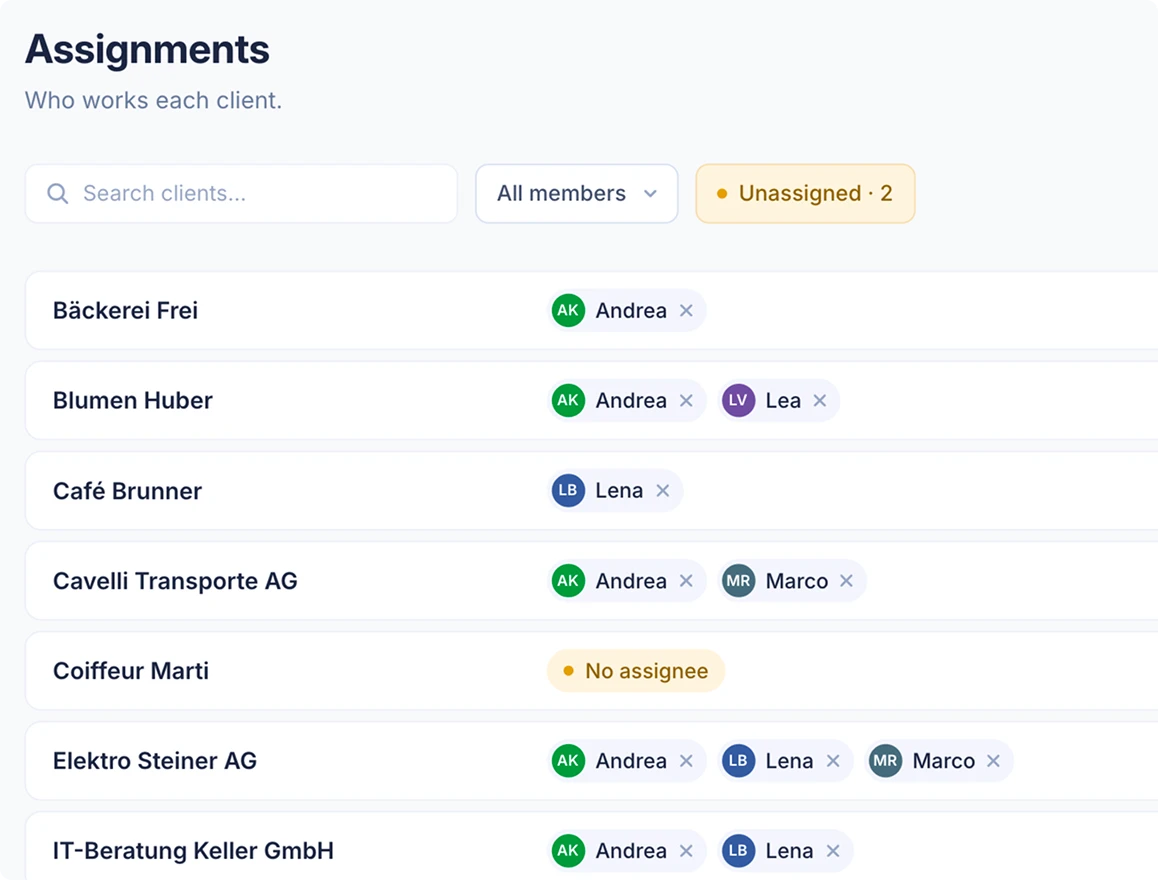
Invite colleagues to your practice and assign one or more accountants to each client. Owners and Admins manage the team and assignments; Members see only the clients assigned to them.
-
Share the work and arrange cover.
Add a colleague to a client for holiday cover, then adjust the assignments when the cover ends.
-
Hand over with the history in place.
Assign another colleague when someone leaves. They can open the client's books and read your practice's notes and the earlier conversation to get up to speed.
-
Adding accountants is free.
The Portfolio is free for your practice and your team. Each client company has its own SoloDesk plan, which determines the features available in its account.
The client file
Keep the working details alongside each client's books.
-
Keep your working notes and service details.
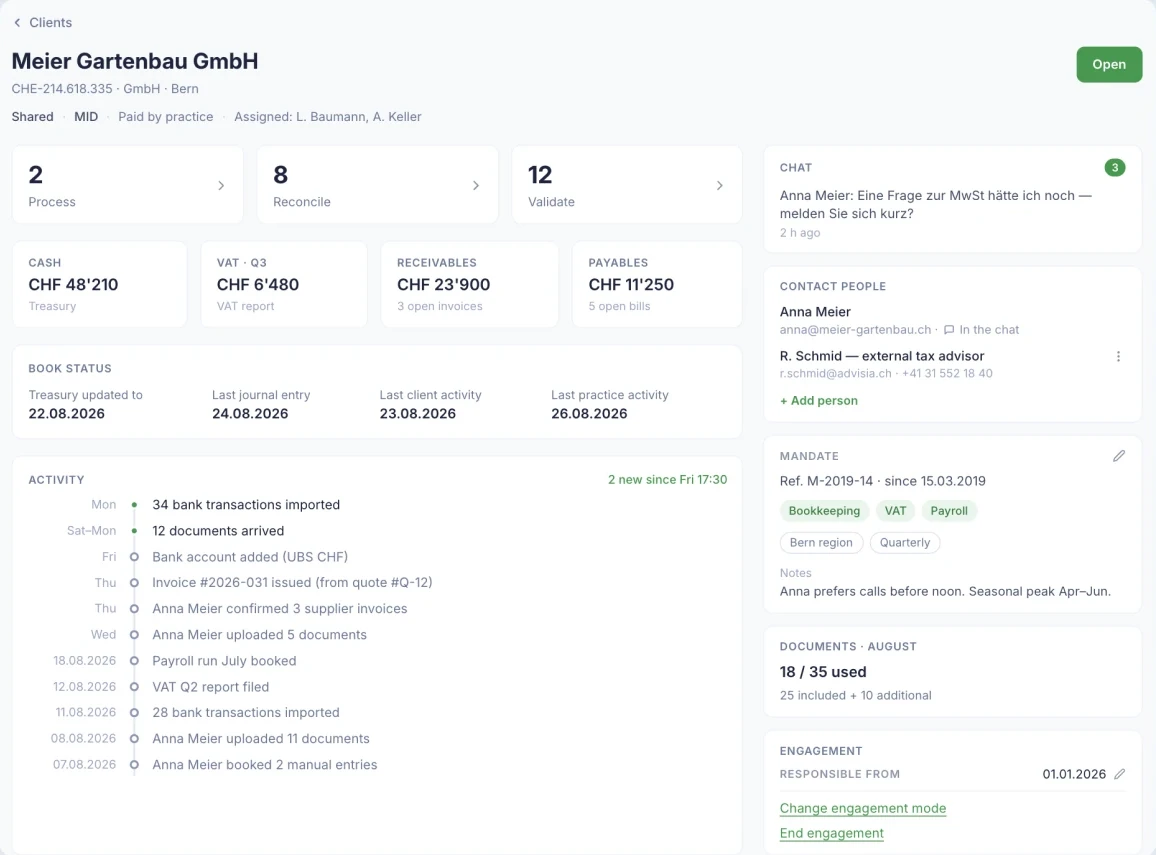
Record the services you provide and the details your team needs to remember. The profile also shows your working arrangement with the client.
-
Have the right contacts to hand.
Keep contact details for the client and anyone else involved, such as an external tax adviser.
-
See what has happened recently.
Recent client updates, recorded activity and the latest accounting dates help you decide what to check in the books.
The Morning screen
Choose where to start, with the work in view.
-
Choose the work to handle next.
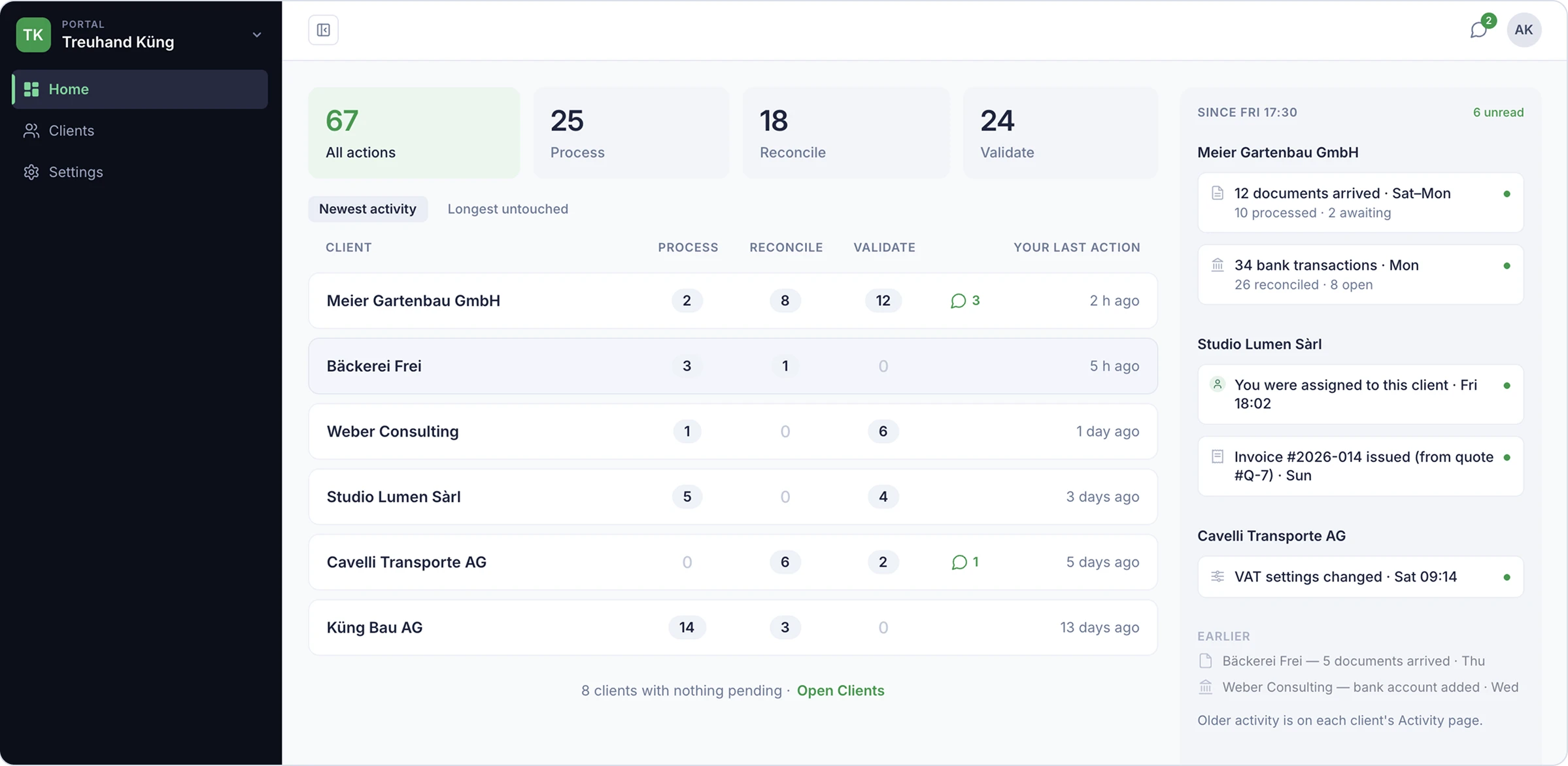
Home shows processing, reconciliation and validation counts across the clients you work with. Filter by type of work and open the relevant work directly.
-
Keep up with changes and conversations.
Client updates are grouped beside the work list. Unread messages appear on the client's row and keep that client in view even when no accounting work is waiting.
-
Keep quieter clients in view.
Sort the full Clients directory by your practice's last recorded activity, oldest first, to decide whom to follow up with.
Client to client
Go straight to the work, from one client to the next.
-
Open the part of the books you need.
Open Treasury from the cash figure on a client's profile, or go straight into the books from the Clients directory.
-
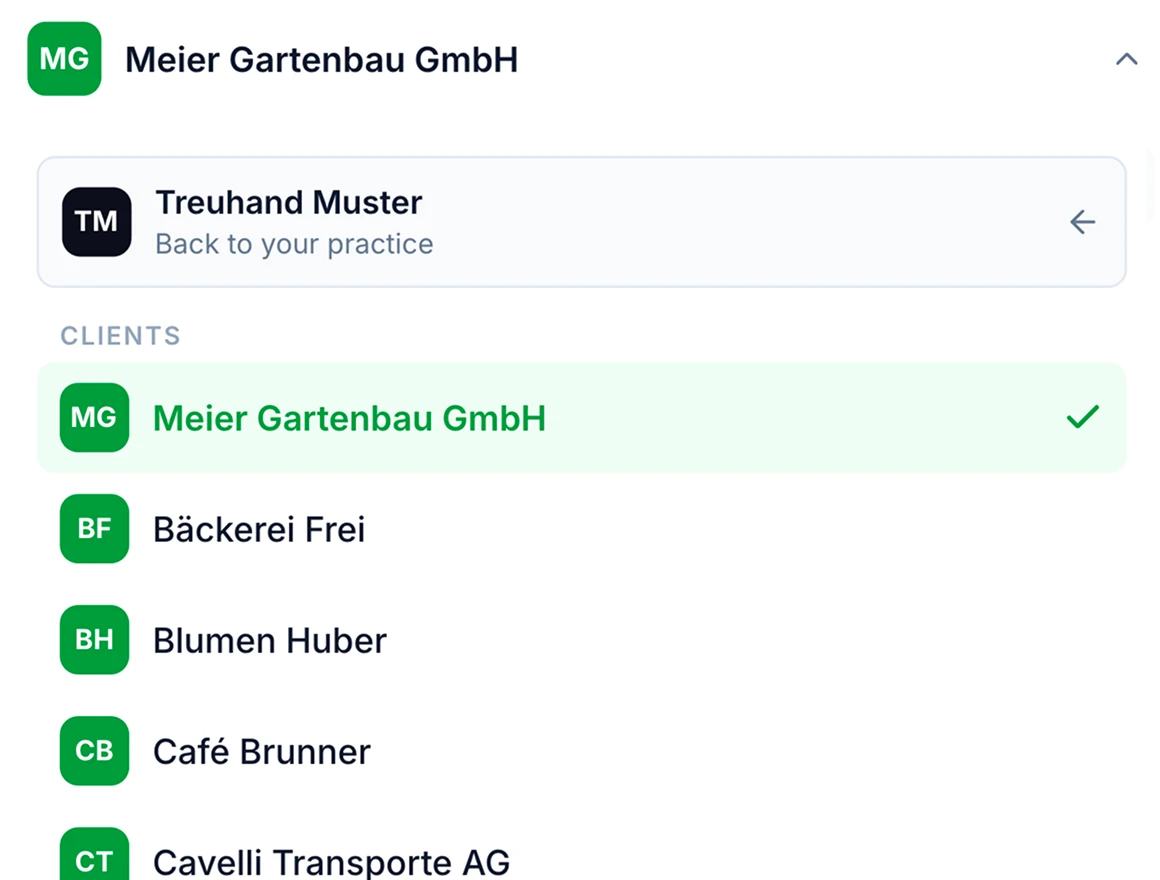
Move on to another client.
Switch between client accounts while staying signed in. Use the same switcher to return to your practice.
-
Pick up the client's conversation.
Open the same client conversation from the work list, the client profile or the Portfolio's chat icon.
Who sees what
Collaborate with clients. Keep your practice's workspace private.
practice sees
Keep your client list and notes internal.
The Portfolio is your practice's workspace. Clients do not see your client list, internal notes or practice working screens.
Clients see
Show clients who to contact about their books.
Clients using SoloDesk can see their assigned accountants and who performed the recorded actions in their books.