Bank reconciliation
Spend less time reconciling your clients' bank payments.
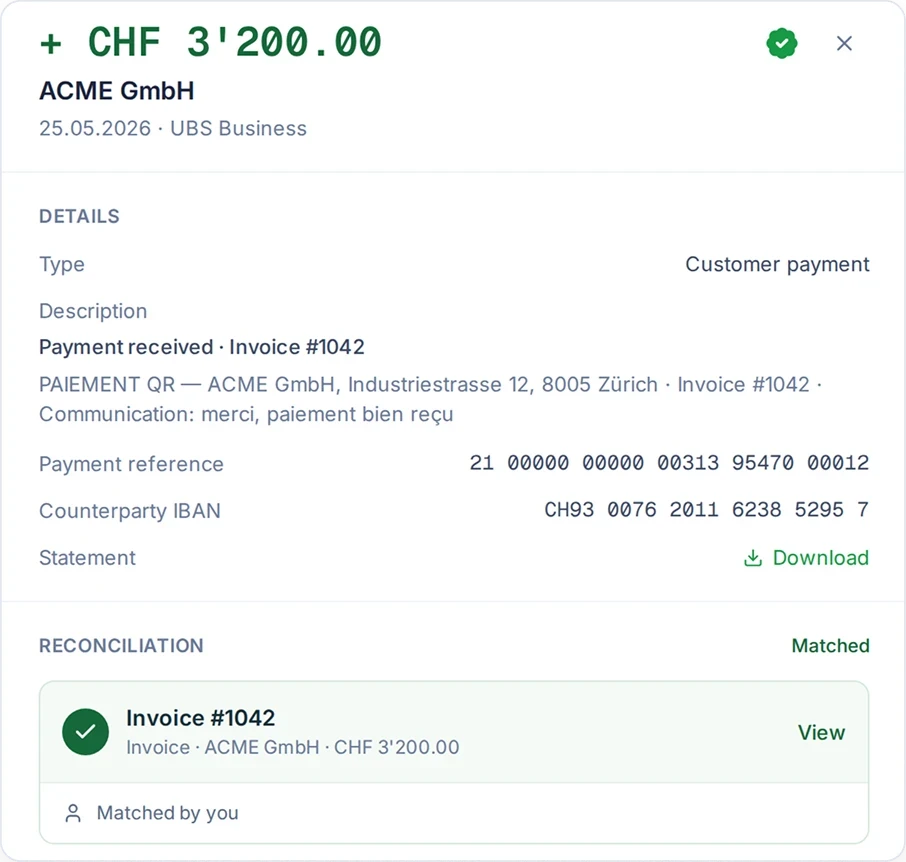
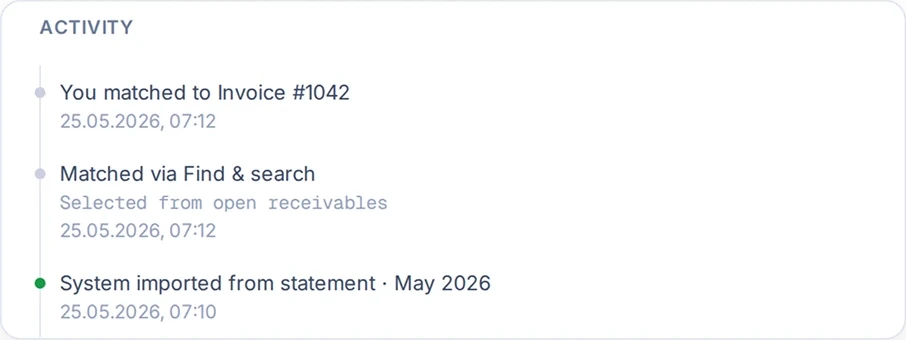
SoloDesk matches payments from imported bank statements to the client's invoices and bills. When a clear match is ready to settle, it records the payment and creates the payment entry automatically. Suggested matches and unresolved transactions remain for you to assess and resolve.
You review the resulting accounting alongside the relevant bank transactions and documents.
Bank statements
Bring in statements without entering each transaction.
Clients can upload statements to SoloDesk or send them to your team. Your team uploads the files or scans any paper statements.
-
Import the bank's transaction data.
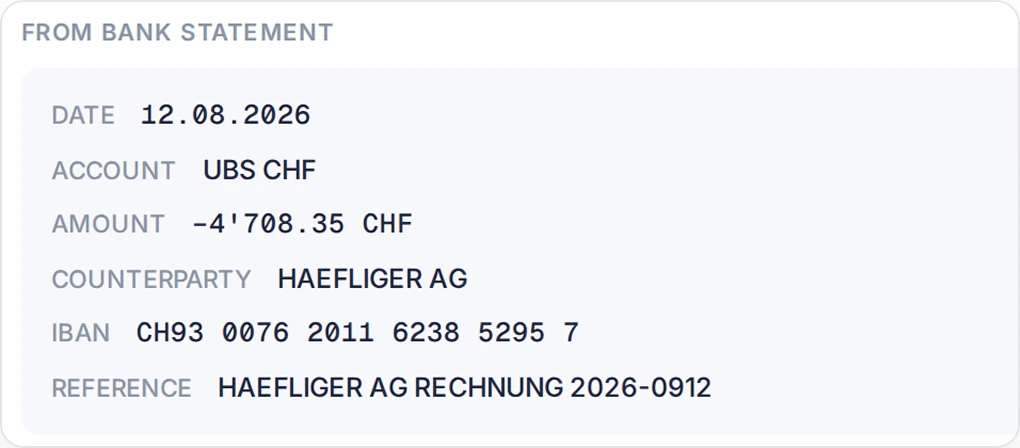
Upload a camt.053 statement exported from the client’s bank. SoloDesk imports the dates and amounts directly from the file, together with payment references and descriptions, counterparty names and IBANs, and the original payment amount and currency where available.
-
Read PDF statements line by line.
SoloDesk reads transaction details and balances from PDF statements. You can check and correct the extracted details where needed.
-
Check for duplicates and balance differences.
SoloDesk checks for duplicate transactions and compares the opening balance plus movements with the closing balance, where both are available. If SoloDesk flags unclear details or a balance difference in a PDF statement, you check it before the transactions are imported.
Automatic reconciliation
Let SoloDesk handle the clear cases.
-
Match payments to invoices and bills.
SoloDesk uses payment references, including QR references, and matching amounts to identify the corresponding outstanding payment. For payments without a reference, it can use a recognised counterparty and one exact amount due. When a clear match is ready to settle, SoloDesk records the payment and creates the payment entry automatically.
-
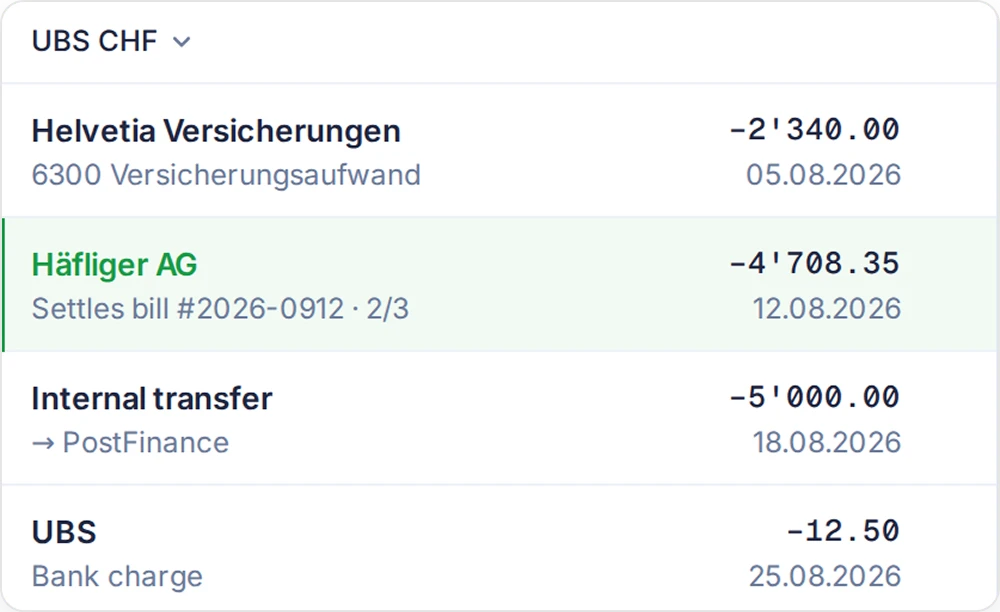
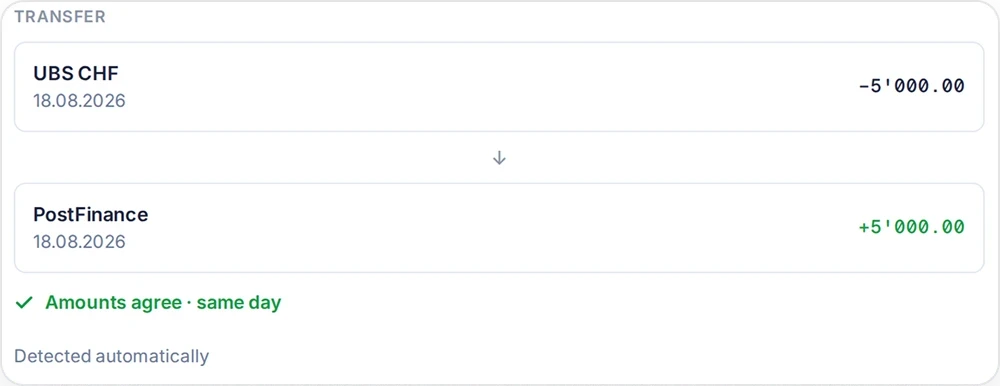
Recognise transfers between the client's own bank accounts.
SoloDesk pairs the corresponding imported transactions from both accounts and creates the transfer entry. A transfer with only one side imported waits for the other.
-
Book recognised bank fees.
SoloDesk can book recognised bank fees directly to bank charges, with the bank transaction linked to the accounting entry.

Manual reconciliation
Resolve open transactions with the details in view.
Resolve the remaining transactions as statements arrive, so fewer open payments are left to investigate at filing time.
-
Assess the proposed matches.
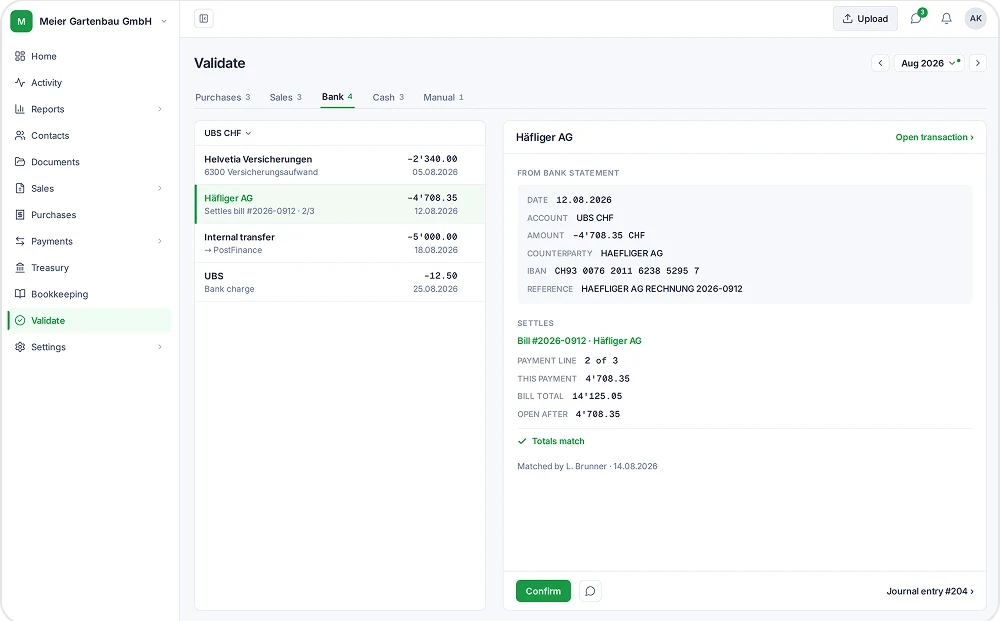
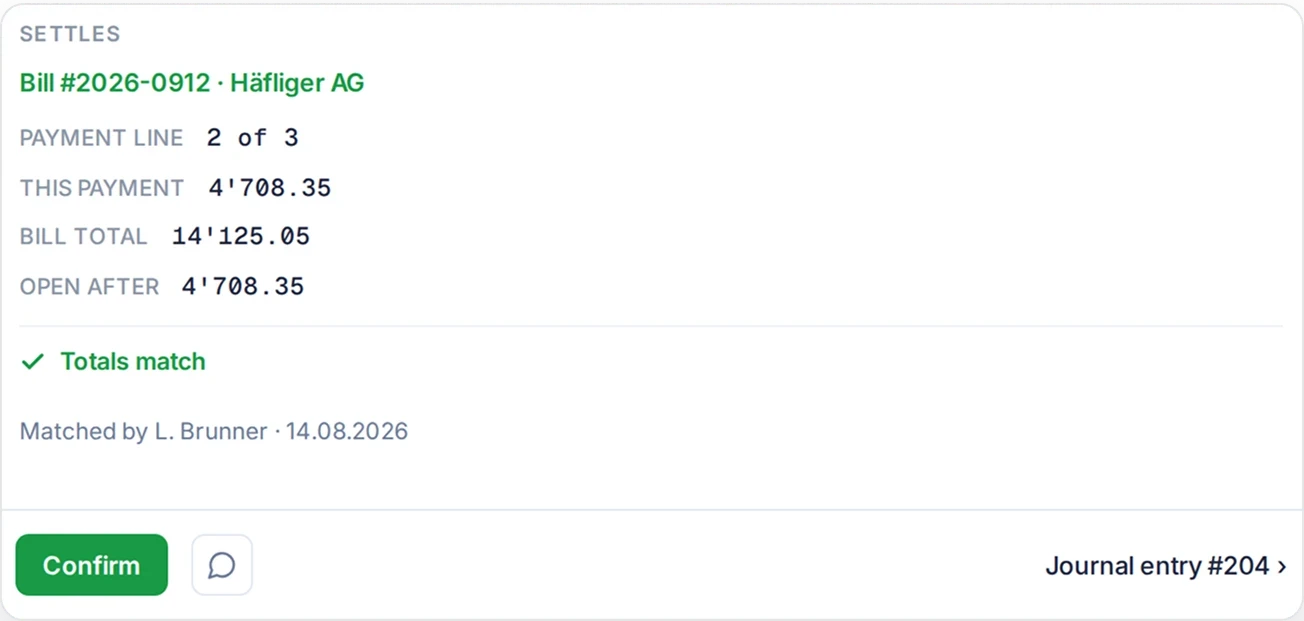
See the proposed document, counterparty, amount and any difference alongside the bank transaction. Confirm an exact match, or search for another document when the suggestion does not fit.
-
Create an entry without an invoice or bill.
When there is no document to match, record the transaction directly. Choose the appropriate accounts or categories, add a description and split the amount across several accounts where needed. SoloDesk checks that the allocation balances and creates the entry linked to the bank transaction.
-
Work through partial and combined payments.
For a partial payment, split the amount due into the paid portion and the remainder, then match the paid portion. For a combined payment without a separately recorded fee, select outstanding amounts for the same counterparty in the bank account's currency that add up to the transaction.
When you need a missing invoice or an explanation from a client using SoloDesk, refer to the bank transaction in the conversation. Once a missing document is available and booked, you can match its outstanding payment.
See the conversationPosted and traceable
See what was paid and how it was recorded.
-
See settled payments and what remains due.
Settling a payment updates the invoice or bill's payment details and creates a separate payment entry. Any unpaid portion remains open. Any exchange gain or loss arising from a foreign-currency settlement appears in the payment entry.
-
Follow the entry to the records behind it.
From the payment details, open the bank transaction or its accounting entry. Payment entries link to the related invoice or bill. For fees, transfers and entries recorded without a document, the accounting entry links to the bank transaction.
-
Record your professional review.
Check the amounts, dates and accounting lines against the relevant records. When you validate an entry, its stamp records who validated it and when.
See Validation